This article is currently in the process of being translated into Ukrainian (~42% done).
Елемент керування WPF ToolBar
Панель інструментів — це рядок команд, який зазвичай розташований прямо під головним меню стандартної програми Windows. Насправді це може бути проста панель з кнопками, але використання елемента керування WPF ToolBar дає додаткові можливості, такі як автоматична обробка переповнення та можливість для кінцевого користувача змінювати положення панелей інструментів.
Панель інструментів WPF зазвичай розміщується всередині елемента керування ToolBarTray. ToolBarTray оброблятиме такі речі, як розміщення та розмір, і ви можете мати кілька елементів керування ToolBar всередині елемента ToolBarTray. Давайте розглянемо досить простий приклад, щоб побачити, як все це виглядає:
<Window x:Class="WpfTutorialSamples.Common_interface_controls.ToolbarSample"
        xmlns="http://schemas.microsoft.com/winfx/2006/xaml/presentation"
        xmlns:x="http://schemas.microsoft.com/winfx/2006/xaml"
        Title="ToolbarSample" Height="200" Width="300">
    <Window.CommandBindings>
        <CommandBinding Command="New" CanExecute="CommonCommandBinding_CanExecute" />
        <CommandBinding Command="Open" CanExecute="CommonCommandBinding_CanExecute" />
        <CommandBinding Command="Save" CanExecute="CommonCommandBinding_CanExecute" />
    </Window.CommandBindings>
    <DockPanel>
        <ToolBarTray DockPanel.Dock="Top">
            <ToolBar>
                <Button Command="New" Content="New" />
                <Button Command="Open" Content="Open" />
                <Button Command="Save" Content="Save" />
            </ToolBar>
            <ToolBar>
                <Button Command="Cut" Content="Cut" />
                <Button Command="Copy" Content="Copy" />
                <Button Command="Paste" Content="Paste" />
            </ToolBar>
        </ToolBarTray>
        <TextBox AcceptsReturn="True" />
    </DockPanel>
</Window>
using System;
using System.Windows;
using System.Windows.Input;
namespace WpfTutorialSamples.Common_interface_controls
{
public partial class ToolbarSample : Window
{
public ToolbarSample()
{
InitializeComponent();
}
private void CommonCommandBinding_CanExecute(object sender, CanExecuteRoutedEventArgs e)
{
e.CanExecute = true;
}
}
}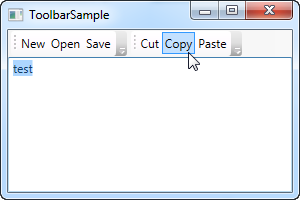
Зверніть увагу, як я використовую команди для всіх кнопок. Ми обговорювали це в попередньому розділі, і використання команд безумовно дає нам певні переваги. Перегляньте розділ «Меню» або статті про команди для отримання додаткової інформації.
У цьому прикладі я додаю ToolBarTray у верхню частину екрана, а всередині нього – два елементи керування ToolBar. Кожен з них містить кілька кнопок, і ми використовуємо команди, щоб задати їм певну поведінку. У коді на основі коду я обов'язково обробляю подію CanExecute перших трьох кнопок, оскільки це не робиться автоматично WPF, на відміну від команд Cut, Copy та Paste, які WPF здатний повністю обробляти за нас.
Спробуйте запустити приклад і розмістити курсор над лівою частиною однієї з панелей інструментів (пунктирною областю). Якщо ви натиснете та утримуватимете ліву кнопку миші, ви зможете змінити положення панелі інструментів, наприклад, під іншу, або навіть поміняти їх місцями.
Images (Зображення)
Хоча текст на кнопках панелі інструментів цілком прийнятний, звичайний підхід полягає в тому, щоб використовувати значки або принаймні комбінацію значка та фрагмента тексту. Оскільки WPF використовує звичайні елементи керування Button, додавання значків до елементів панелі інструментів дуже просте. Просто погляньте на наступний приклад, де ми робимо і те, і інше:
<Window x:Class="WpfTutorialSamples.Common_interface_controls.ToolbarIconSample"
        xmlns="http://schemas.microsoft.com/winfx/2006/xaml/presentation"
        xmlns:x="http://schemas.microsoft.com/winfx/2006/xaml"
        Title="ToolbarIconSample" Height="200" Width="300">
    <DockPanel>
        <ToolBarTray DockPanel.Dock="Top">
            <ToolBar>
                <Button Command="Cut" ToolTip="Cut selection to Windows Clipboard.">
                    <Image Source="/WpfTutorialSamples;component/Images/cut.png" />
                </Button>
                <Button Command="Copy" ToolTip="Copy selection to Windows Clipboard.">
                    <Image Source="/WpfTutorialSamples;component/Images/copy.png" />
                </Button>
                <Button Command="Paste" ToolTip="Paste from Windows Clipboard.">
                    <StackPanel Orientation="Horizontal">
                        <Image Source="/WpfTutorialSamples;component/Images/paste.png" />
                        <TextBlock Margin="3,0,0,0">Paste</TextBlock>
                    </StackPanel>
                </Button>
            </ToolBar>
        </ToolBarTray>
        <TextBox AcceptsReturn="True" />
    </DockPanel>
</Window>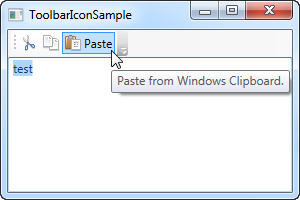
Вказавши елемент керування Image як вміст перших двох кнопок, вони будуть базуватися на значках, а не на тексті. На третій кнопці я поєднав елемент керування Image та елемент керування TextBlock всередині StackPanel, щоб отримати як значок, так і текст на кнопці, що часто використовується для кнопок, які є надзвичайно важливими або мають менш помітний значок.
Зверніть увагу, як я використав властивість ToolTip для кожної кнопки, щоб додати пояснювальний текст. Це особливо важливо для тих кнопок, які мають лише значок, оскільки призначення кнопки може бути незрозумілим лише з точки зору значка. За допомогою властивості ToolTip користувач може навести курсор миші на кнопку, щоб отримати опис її дії, як показано на скріншоті.
Overflow
As already mentioned, a very good reason for using the ToolBar control instead of just a panel of buttons, is the automatic overflow handling. It means that if there's no longer enough room to show all of the buttons on the toolbar, WPF will put them in a menu accessible by clicking on the arrow to the right of the toolbar. You can see how it works on this screenshot, which shows the first example, but with a smaller window, thereby leaving less space for the toolbars:
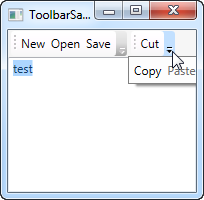
WPF even allows you to decide which items are suitable for overflow hiding and which should always be visible. Usually, when designing a toolbar, some items are less important than the others and some of them you might even want to have in the overflow menu all the time, no matter if there's space enough or not.
This is where the attached property ToolBar.OverflowMode comes into play. The default value is AsNeeded, which simply means that a toolbar item is put in the overflow menu if there's not enough room for it. You may use Always or Never instead, which does exactly what the names imply: Puts the item in the overflow menu all the time or prevents the item from ever being moved to the overflow menu. Here's an example on how to assign this property:
<ToolBar>
    <Button Command="Cut" Content="Cut" ToolBar.OverflowMode="Always" />
    <Button Command="Copy" Content="Copy" ToolBar.OverflowMode="AsNeeded" />
    <Button Command="Paste" Content="Paste" ToolBar.OverflowMode="Never" />
</ToolBar>
Position
While the most common position for the toolbar is indeed in the top of the screen, toolbars can also be found in the bottom of the application window or even on the sides. The WPF ToolBar of course supports all of this, and while the bottom placed toolbar is merely a matter of docking to the bottom of the panel instead of the top, a vertical toolbar requires the use of the Orientation property of the ToolBar tray. Allow me to demonstrate with an example:
<Window x:Class="WpfTutorialSamples.Common_interface_controls.ToolbarPositionSample"
        xmlns="http://schemas.microsoft.com/winfx/2006/xaml/presentation"
        xmlns:x="http://schemas.microsoft.com/winfx/2006/xaml"
        Title="ToolbarPositionSample" Height="200" Width="300">
	<DockPanel>
		<ToolBarTray DockPanel.Dock="Top">
			<ToolBar>
				<Button Command="Cut" ToolTip="Cut selection to Windows Clipboard.">
					<Image Source="/WpfTutorialSamples;component/Images/cut.png" />
				</Button>
				<Button Command="Copy" ToolTip="Copy selection to Windows Clipboard.">
					<Image Source="/WpfTutorialSamples;component/Images/copy.png" />
				</Button>
				<Button Command="Paste" ToolTip="Paste from Windows Clipboard.">
					<StackPanel Orientation="Horizontal">
						<Image Source="/WpfTutorialSamples;component/Images/paste.png" />
						<TextBlock Margin="3,0,0,0">Paste</TextBlock>
					</StackPanel>
				</Button>
			</ToolBar>
		</ToolBarTray>
		<ToolBarTray DockPanel.Dock="Right" Orientation="Vertical">
			<ToolBar>
				<Button Command="Cut" ToolTip="Cut selection to Windows Clipboard.">
					<Image Source="/WpfTutorialSamples;component/Images/cut.png" />
				</Button>
				<Button Command="Copy" ToolTip="Copy selection to Windows Clipboard.">
					<Image Source="/WpfTutorialSamples;component/Images/copy.png" />
				</Button>
				<Button Command="Paste" ToolTip="Paste from Windows Clipboard.">
					<Image Source="/WpfTutorialSamples;component/Images/paste.png" />
				</Button>
			</ToolBar>
		</ToolBarTray>
		<TextBox AcceptsReturn="True" />
	</DockPanel>
</Window>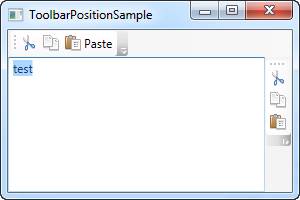
The trick here lies in the combination of the DockPanel.Dock property, that puts the ToolBarTray to the right of the application, and the Orientation property, that changes the orientation from horizontal to vertical. This makes it possible to place toolbars in pretty much any location that you might think of.
Custom controls on the ToolBar
As you have seen on all of the previous examples, we use regular WPF Button controls on the toolbars. This also means that you can place pretty much any other WPF control on the toolbars, with no extra effort. Of course, some controls works better on a toolbar than others, but controls like the ComboBox and TextBox are commonly used on the toolbars in e.g. older versions of Microsoft Office, and you can do the same on your own WPF toolbars.
Another thing introduced in this example is the Separator element, which simply creates a separator between two sets of toolbar items. As you can see from the example, it's very easy to use!
<Window x:Class="WpfTutorialSamples.Common_interface_controls.ToolbarCustomControlsSample"
        xmlns="http://schemas.microsoft.com/winfx/2006/xaml/presentation"
        xmlns:x="http://schemas.microsoft.com/winfx/2006/xaml"
        Title="ToolbarCustomControlsSample" Height="200" Width="300">
	<DockPanel>
		<ToolBarTray DockPanel.Dock="Top">
			<ToolBar>
				<Button Command="Cut" ToolTip="Cut selection to Windows Clipboard.">
					<Image Source="/WpfTutorialSamples;component/Images/cut.png" />
				</Button>
				<Button Command="Copy" ToolTip="Copy selection to Windows Clipboard.">
					<Image Source="/WpfTutorialSamples;component/Images/copy.png" />
				</Button>
				<Button Command="Paste" ToolTip="Paste from Windows Clipboard.">
					<StackPanel Orientation="Horizontal">
						<Image Source="/WpfTutorialSamples;component/Images/paste.png" />
						<TextBlock Margin="3,0,0,0">Paste</TextBlock>
					</StackPanel>
				</Button>
				<Separator />
				<Label>Font size:</Label>
				<ComboBox>
					<ComboBoxItem>10</ComboBoxItem>
					<ComboBoxItem IsSelected="True">12</ComboBoxItem>
					<ComboBoxItem>14</ComboBoxItem>
					<ComboBoxItem>16</ComboBoxItem>
				</ComboBox>
			</ToolBar>
		</ToolBarTray>
		<TextBox AcceptsReturn="True" />
	</DockPanel>
</Window>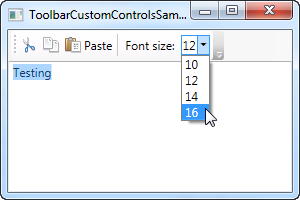
Summary
Creating interfaces with toolbars is very easy in WPF, with the flexible ToolBar control. You can do things that previously required 3rd party toolbar controls and you can even do it without much extra effort.